Before you start
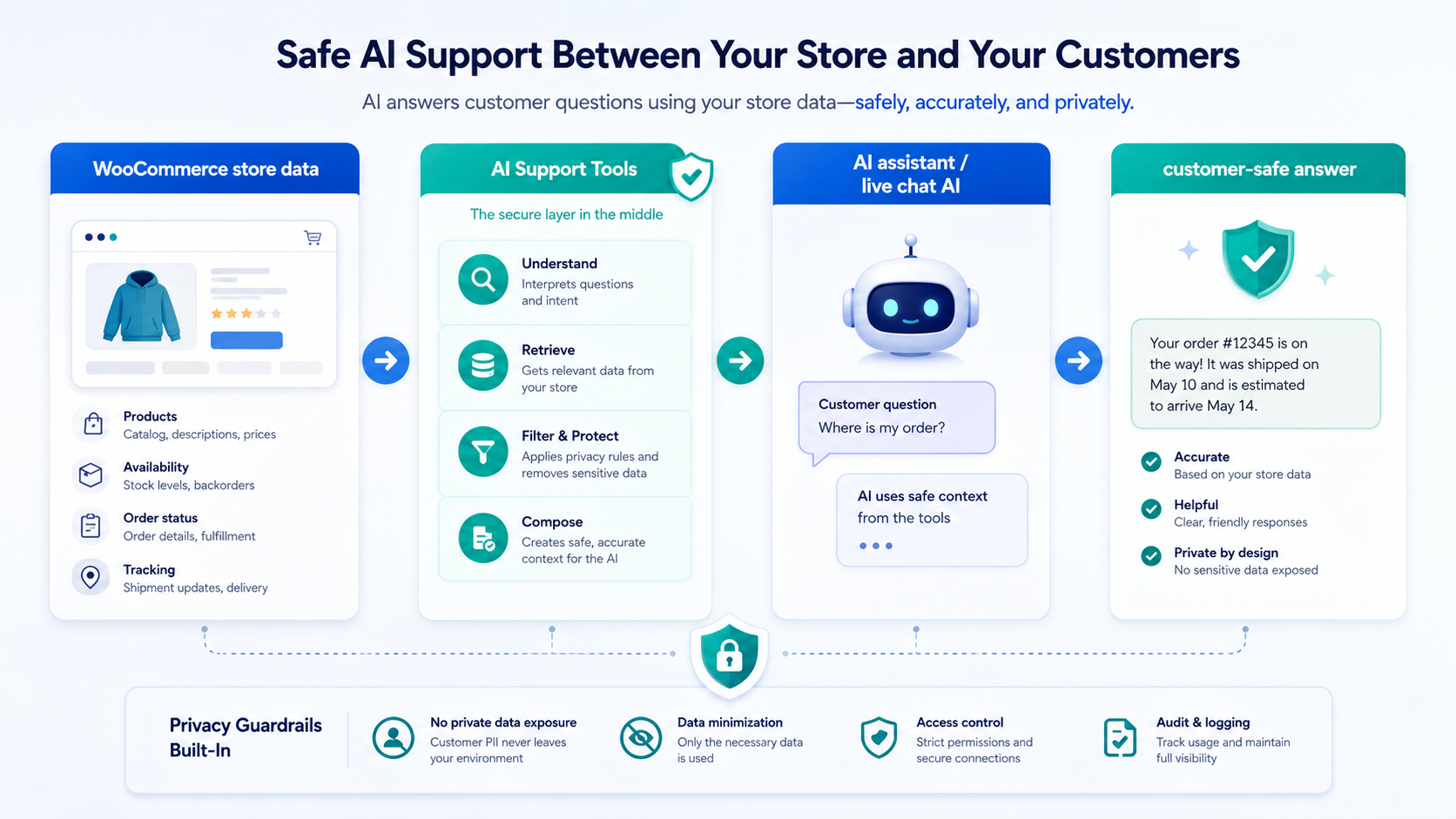
Tawk.to's WordPress plugin handles widget and live chat embedding. WebExpertDev AI Customer Support Assistant works alongside Tawk.to Live Chat and compatible OpenAPI assistants by adding safe WooCommerce tool access for AI assistants. WebExpertDev AI Customer Support Assistant is not affiliated with, endorsed by, or sponsored by Tawk.to.
1. Create the plugin token
In WordPress admin, open the plugin setup assets and create a bearer token for AI Assist. Store it securely and use the health endpoint to confirm the REST API is reachable.
2. Choose the schema mode
Use the full OpenAPI schema for richer tool descriptions or the compact schema when Tawk.to AI Assist needs a smaller tool definition.
3. Add the OpenAPI schema
In Tawk.to AI Assist, add the schema URL exposed by the plugin.
4. Set authorization
Add the bearer token header exactly as shown in the plugin setup screen.
5. Paste instructions
Tell AI Assist to use approved operations for product search, availability, verified order status, and customer-safe tracking summaries. Route restricted commerce actions, refund requests, cancellations, and order changes to your support team.
6. Test before production
Use fictional customer questions and confirm no private data appears without order verification. Test max product results, brand/manufacturer matching, status mapping, rate-limited order-status behavior, tracking summaries, restricted-action routing, and any active Pro workflows such as Lead Capture, secure cart links, reorder links, Product Discovery, Knowledge Builder, or custom tracking output.
Optional widget embed
The plugin can support an optional Tawk widget embed path, but it does not replace Tawk.to's WordPress plugin or Tawk.to Live Chat.
Generic OpenAPI setup
Using another assistant? Confirm it supports OpenAPI import, HTTPS REST calls, and Authorization bearer headers, then test every operation before production use.
View OpenAPI setup